
See a Demo
You're just one step away from seeing Call Loop in action.
Enter your information below to watch a demo right now.

You're just one step away from seeing Call Loop in action.
Enter your information below to watch a demo right now.

You already know the symptom. A customer text comes in after hours, a technician replies to the wrong thread, or a lead message sits on one phone while the person who usually handles it is out sick. By the time anyone notices, the context is half gone and the team is guessing. Forwarding a text message to email fixes that specific kind of failure, because it moves the message into the inbox where teams already sort, assign, archive, and escalate work.
The reason this matters is simple. SMS gets 98% open rates versus about 20% for email, and SMS gets an average 45% response rate versus 6% for email according to the benchmark often cited for text-to-email workflows, while the average person responds to a text in about 90 seconds compared with 90 minutes for email Emarsys SMS marketing statistics. Those numbers don't measure forwarding itself, but they explain why businesses route text into email. SMS is the fast, visible channel, while email is still the working layer for routing, collaboration, and recordkeeping.
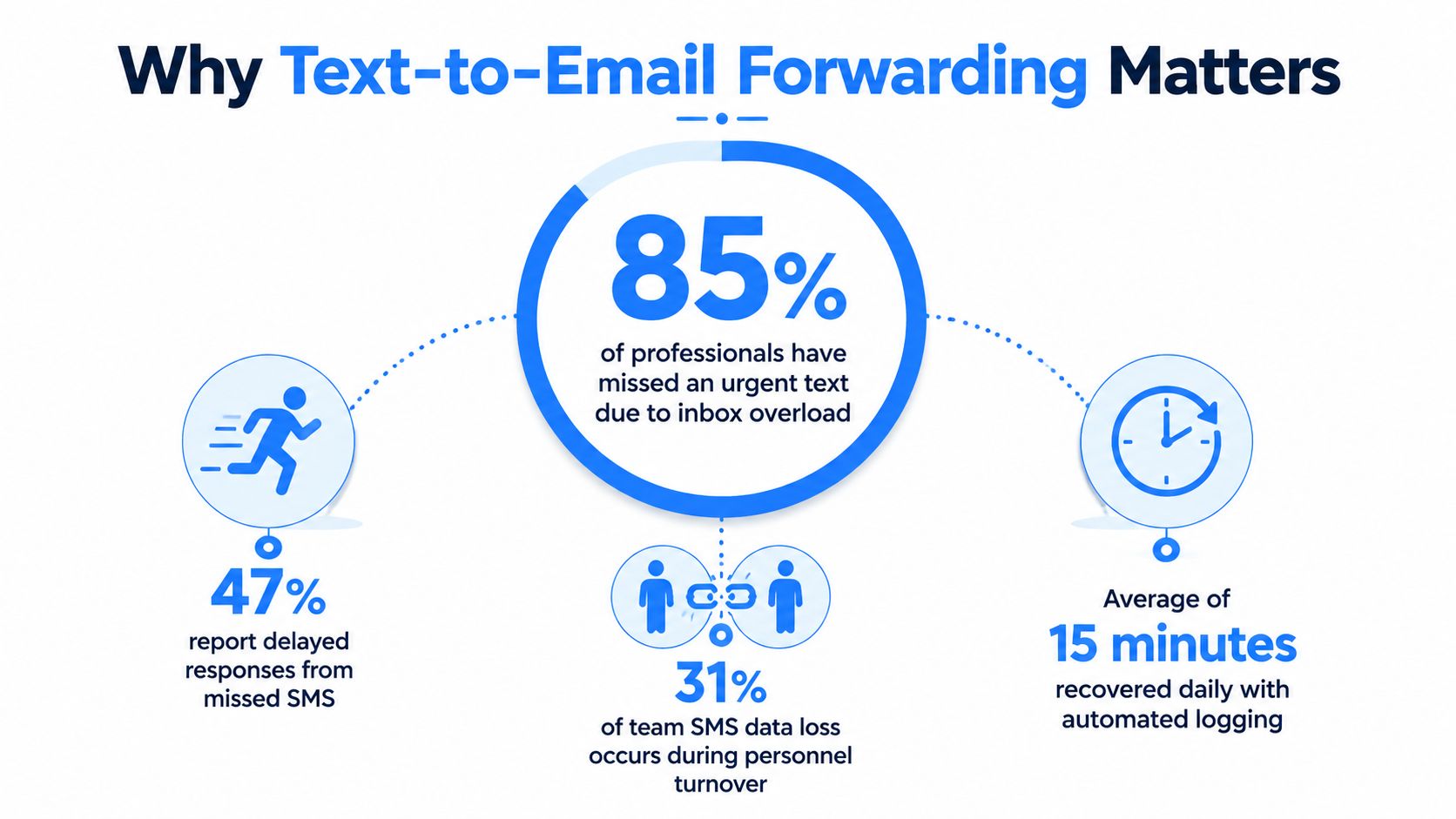
For an individual, forwarding can be a convenience. For a business, it's an operational control point. A missed SMS from a customer, dispatcher, or patient can become a missed handoff, and a missed handoff usually costs more than the message itself. The best method depends on whether you need a one-off transfer, a repeatable personal workflow, or a system that survives staff turnover and shift changes.
A missed text often shows up as a small mistake at first. Someone sees it later, replies from memory, and the thread becomes a mix of context, corrections, and follow-up questions. That's how a simple SMS turns into a longer admin problem, especially when the message was meant for a shared team rather than a single phone.
Email solves the part SMS struggles with. It gives you archiving, routing, and collaboration, which is why forwarding is so useful when a message needs to land in a shared inbox or a CRM workflow. In practice, the team gets one place to review the message, assign it, and keep it tied to other records.
That matters most when the message is urgent. Support requests, appointment reminders, lead follow-up, dispatch notifications, and after-hours service issues all benefit from being visible where the team already works. The point isn't to replace SMS. The point is to keep the speed of SMS and remove the fragility of a single handset.
Manual forwarding on a phone works fine when one person wants a copy of an important text. It breaks down when a second person needs the same message, or when the original recipient is on vacation, in the field, or no longer with the company. Once a business depends on that message path, you need something more durable than a tap-and-forward habit.
Practical rule: if a text matters after the current shift ends, it needs to land somewhere shared.
That's the dividing line I use on real accounts. Occasional forwarding is a personal convenience problem. Shared forwarding is a workflow design problem. The rest of the methods below map to that split, from native phone features to automation and, eventually, broader messaging systems.
A phone can still handle a one-off text-to-email handoff, and that is where native forwarding makes sense. On iPhone, Apple documents Text Message Forwarding as a built-in feature that works when devices are signed into the same Apple Account and enabled through Settings > Apps > Messages > Text Message Forwarding. Apple also notes that Messages in iCloud is part of that setup, so if the devices are not signed in the same way, the forwarding path will not behave the way people expect Apple support.
For a one-time forward, open the conversation in Messages, select the specific message, and use the forward or share flow to send it onward, including to an email address. That is the cleanest option when you need to preserve the message manually and do not want another tool in the stack. It also keeps the sender, timestamp, and context visible as long as the person doing the forwarding does not trim them away.
Manual taps do not scale beyond about 50 messages per week without creating missed handoffs. I have seen the failure pattern many times. Someone starts with a free, familiar workflow, then a message gets skipped during a busy shift, or the wrong thread gets copied because the operator is moving too fast.
On Android, the typical path is different. Open the thread, long-press the SMS, choose Forward or Share, enter the email address in the recipient field, and tap Send. Parseur describes the same mechanic and notes that the email address is entered in the To field just like a phone number would be Parseur on forwarding SMS to email. That is fine for ad hoc use and quick personal copies, but it leaves the burden on the person at the screen to keep the record intact.
Google Messages also does not behave like a universal native forwarding system. Some users route Google Voice messages to email by turning on Forward messages to email under Settings > Messages, which applies to messages tied to the Google Voice account, not every SMS on the phone Google Messages help thread. That distinction matters because Android users often assume one device-wide rule exists when the actual behavior depends on the app, the account, and the forwarding path.
A native workflow is short and manually controlled. It works for occasional copies, not for shared records, compliance review, or anything that has to survive shift changes and phone turnover. When the message needs to be reliable after the current handoff, the phone alone is the weak link.
The same gap shows up in internal workflows that need more structure, which is why some teams move to Call Loop's Zapier integrations once manual forwarding starts creating missed follow-ups.
A forwarding rule only helps if it catches the text every time, keeps enough context to act on, and lands in an inbox people watch. Once a message has to be visible, searchable, and assigned without relying on someone's memory, the workflow needs to fire automatically the moment the SMS arrives. The better setups preserve the sender number, timestamp, and message body, then route a readable email to the right place instead of asking a person to copy the details by hand.
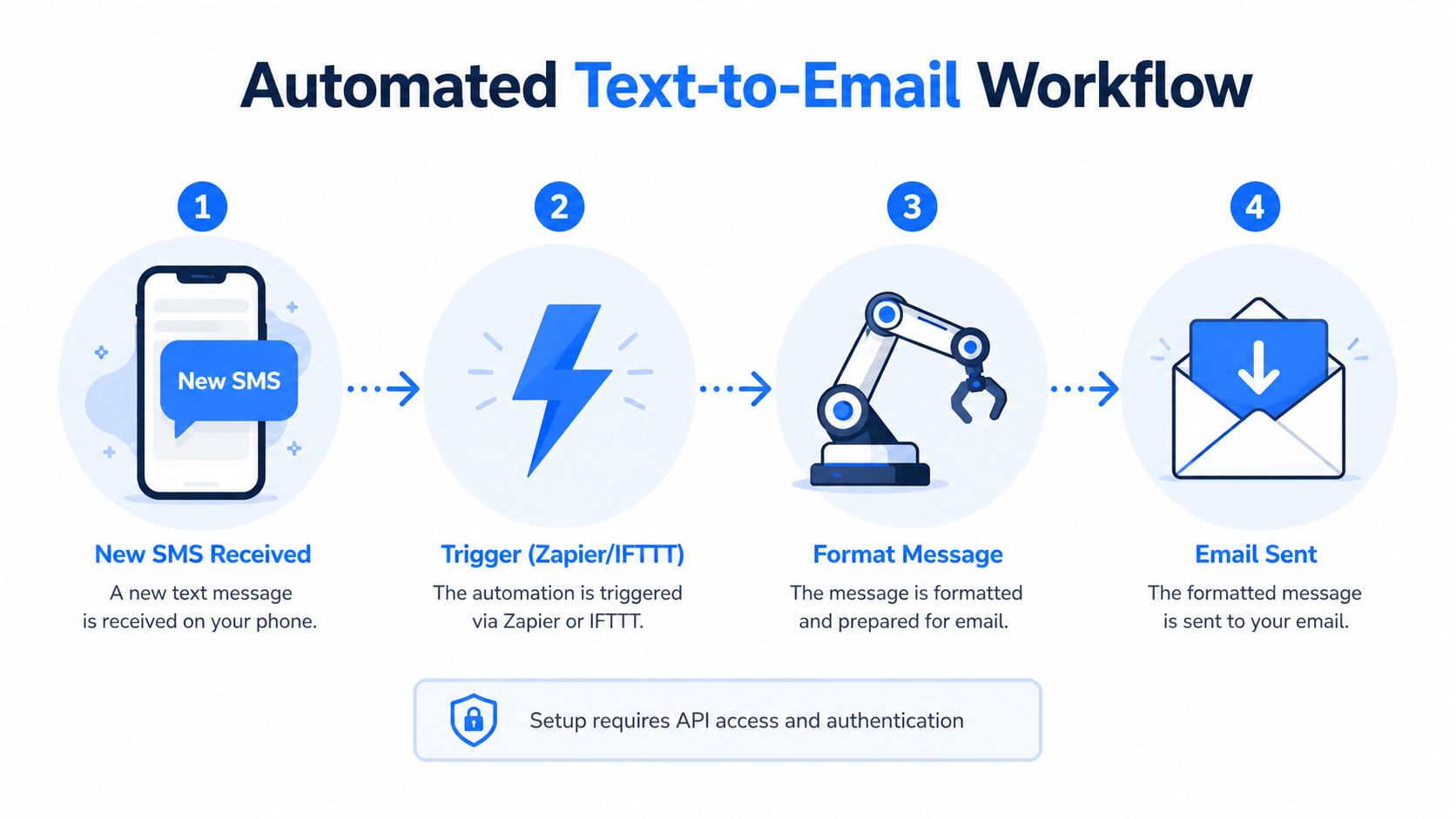
Event-driven automation is the cleanest pattern. Capture the inbound SMS trigger, include metadata such as the sender number, timestamp, message body, and conversation ID, then build a subject line that gives the next person enough context to sort the message without opening extra tabs ReachInbox text messages to email. That subject line carries more weight than it looks like, because a triage queue works faster when the case or account reference is visible before anyone opens the email.
Google Voice gives some users a built-in starting point. Google's help thread points to Settings > Messages and the Forward messages to email option, which sends messages to the email tied to the Google Voice account. That setup is straightforward, but it still needs a test run before anyone trusts it for live operations.
IFTTT and Zapier become useful once you add rules. Zapier and similar automation tools can filter by contact or by keywords such as invoice, support, or urgent, while other tools let you narrow the flow to specific contacts before forwarding PhoneLeash and AutoForward Text. That keeps routine texts from flooding the same inbox and pushes only the messages that need action.
The destination matters just as much. Route messages to role-based inboxes like dispatch@, support@, ap@, or exceptions@, not to a single employee mailbox. That keeps the workflow alive when someone is out, leaves the team, or changes shifts. For teams already using automation in other systems, Call Loop's Zapier integration documentation shows how to tie the forwarding rule into a broader setup without leaving the record stranded in one person's inbox.
Practical rule: if the email subject does not tell the next person what to do, the workflow is too thin.
Test the failure cases before rollout. Send duplicate texts, partial threads, and messages with attachments, then verify what the email contains. A forwarding workflow is only useful when it survives the messy cases, not just the clean ones.
Once text forwarding becomes part of a sales queue, patient reminder flow, or support desk, the question changes. You're no longer choosing between manual forwarding and a simple automation rule. You're choosing a messaging system that can keep pace with volume, keep context attached, and fit the rest of the outreach stack without creating a new pile of exceptions.
A plain SMS-to-email relay gives you visibility. It doesn't give you campaign control, segmentation, scheduled sends, keyword capture, or the other pieces that help teams manage outbound and inbound communication together. That's where a multi-channel platform makes more sense than a one-off forwarding trick, especially when the same team also needs follow-up messages, reminders, or callback sequences.
Call Loop is built around that broader operational use. Its SMS tools include text-to-join keywords, custom fields, merge tags, segmentation, scheduling, and rich media support, while built-in link shortening, click tracking, number validation, double opt-in, and toll-free compliance are designed to make delivery and tracking more dependable. It also integrates with ActiveCampaign, HubSpot, Keap, and 4,000+ apps via Zapier, which makes it easier to tie text activity back to the CRM and not leave it floating in an email inbox.
For teams that need more than text forwarding, voice and voicemail matter. Call Loop supports live and machine answer detection, press-1 transfers, custom caller ID, recorded or AI text-to-speech audio, and DNC management. Its ringless voicemail feature delivers messages directly to voicemail inboxes, with mobile and landline delivery, flexible scheduling, and pricing charged per successful drop. That's useful when the right next step isn't another email thread, it's a voice touch that reaches the person where they already check messages.
The same platform also handles drip campaigns, appointment reminders, and coordinated SMS, voice, and ringless sequences with precise timers and calendar or custom-date triggers. That's a real difference from forwarding, because it turns communication into a managed sequence instead of a one-off relay. For teams that have outgrown manual forwarding, the internal overview at Call Loop SMS text messaging is the right place to compare the workflow pieces side by side.
If you only need a copy of the occasional text, native forwarding is enough. If you need automated routing and metadata preservation, Zapier, IFTTT, or Google Voice can carry you a long way. If you need dependable multi-channel communication alongside texting, a business platform is usually the cleaner answer.
Most forwarding guides stop at the click path. That's not enough once you're handling patient communication, client records, or any other message that contains personal data. Email is less controlled than dedicated business messaging systems, and forwarding SMS content into email can create access-control problems, retention issues, and consent questions that the how-to articles skip over.
Healthcare research shows SMS is widely used for patient communication, but it also raises security and privacy concerns, and organizations are expected to treat texting as a privacy-sensitive channel rather than a secure archival method U.S. review on texting and privacy. That's the core problem with forwarding texts into a mailbox. A forwarded message can be easy to find, but it can also be easier to misroute, retain too long, or expose to people who never should have seen it.
That's why the right question isn't just how to forward a text message to email. It's whether forwarding is the right transport for that message at all. For HIPAA-covered entities and similar environments, the safer answer is often a platform with stronger controls rather than a generic inbox relay.
A forwarding policy should document consent, access restrictions, and retention. It should also define who can see forwarded content, who can edit forwarding rules, and how often those rules get reviewed. If the message contains sensitive details, filters should exclude or redact what they can, and the mailbox receiving the text should be restricted to people who need the information.
For teams comparing business tools, compliance features matter. Double opt-in, DNC management, and toll-free compliance are useful controls in broader messaging operations, and they're part of why some organizations move away from basic email forwarding. If the workflow needs stronger security framing, the discussion at Is SMS encrypted helps clarify why privacy expectations should stay conservative.
Practical rule: if you can't explain who can access the forwarded text and how long it stays there, the workflow isn't ready.
The failures are predictable because the weak spots are predictable. A forwarded text arrives without the sender number. A photo vanishes. Two copies of the same message show up. The carrier delays one message long enough to make the thread look out of order. Or the app behaves differently because one message is plain SMS and another is an iMessage-style handoff.

The clean-path test is too easy. Send one normal text and it works, so everyone assumes the workflow is safe. The true test is whether the system keeps context when the thread gets messy, because that's when operations usually break.
Use this checklist before you trust a forwarding rule:
Apple's support discussions also point out that forwarding to an email tied to an Apple ID can behave differently from forwarding to a non-Apple address, which changes the output and user experience Apple support discussion. That's the kind of quirk that gets missed in generic guides and then shows up as a support ticket later.
Manual forwarding is the simplest choice when the goal is personal convenience and the volume is tiny. Automation with Google Voice, IFTTT, or Zapier fits small teams that need repeatable forwarding and some filtering. A broader platform makes more sense when the team needs voice, ringless voicemail, scheduling, compliance controls, and workflows that don't depend on one employee's phone.
The decision is less about features on paper and more about failure tolerance. If losing one message is annoying, native forwarding is fine. If losing one message creates a missed sale, missed appointment, or missed handoff, build the workflow like it matters.
If you need a cleaner way to move SMS into shared workflows without losing context, Call Loop gives you a more complete path than basic forwarding. It combines SMS, voice broadcasting, ringless voicemail, scheduling, and CRM-friendly automation so the message doesn't just arrive, it gets routed where the team can act on it. Visit Call Loop to see how it fits your forwarding, follow-up, and compliance needs.
Chris Brisson
Chris is the co-founder and CEO at Call Loop. He is focused on marketing automation, growth hacker strategies, and creating duplicatable systems for growing a remote and bootstrapped company. Chat with him on X at @chrisbrisson


Trusted by over 45,000 people, organizations, and businesses like


