
See a Demo
You're just one step away from seeing Call Loop in action.
Enter your information below to watch a demo right now.

You're just one step away from seeing Call Loop in action.
Enter your information below to watch a demo right now.

Sending a picture through text feels like second nature now, right? It’s as easy as tapping an icon and hitting send. We do it all the time to share a funny pet photo or a stunning sunset, all thanks to technology like MMS (Multimedia Messaging Service) and RCS (Rich Communication Services).
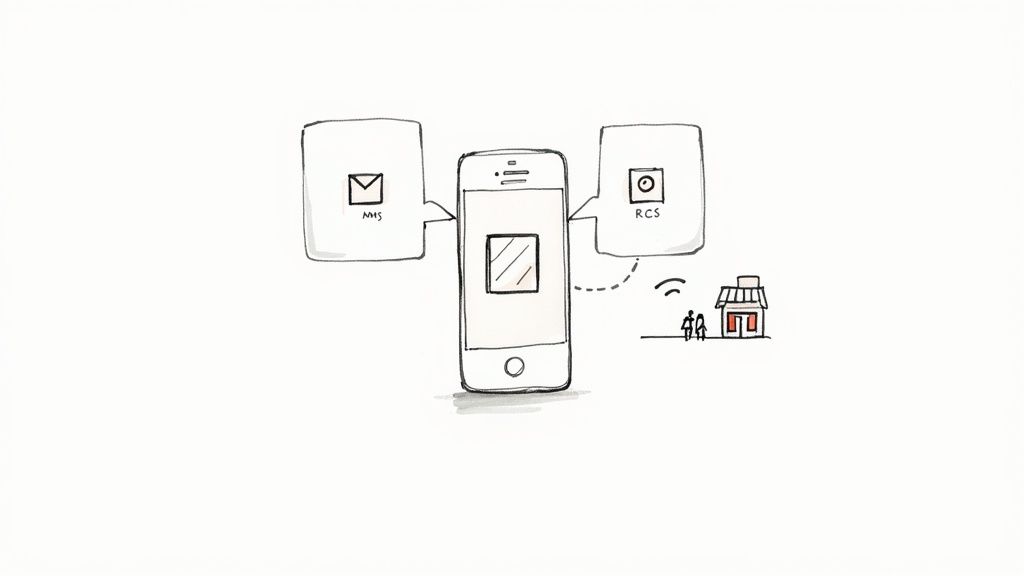
What started as a bit of a gimmick has quickly become a fundamental way we communicate, both in our personal lives and in business. The simple act of sending an image through a text has evolved from its clunky beginnings to power everything from family group chats to sophisticated marketing campaigns.
Behind this simple action are two key technologies that have completely changed the game:
Knowing the difference is key. If you're sending a high-quality product photo to a customer, RCS is your best bet for clarity. But for a quick, informal update, a simple MMS will do the job just fine.
The journey of picture messaging really shows how much our interactions have changed. What was a novelty for tech nerds in the 90s went mainstream when MMS was commercially launched in 2002. Fast forward to today, and the global mobile messaging market is projected to be worth around $136.2 billion by 2025. That number says a lot about how ingrained this habit is in our daily lives and its massive role in business.
This isn't just about convenience anymore. Businesses are now tapping into picture messaging to build real connections with their customers. Think about a real estate agent texting a photo of a new listing the second it hits the market, or a local shop sharing a picture of a flash sale item. These visual messages almost always outperform plain old text.
For businesses, a well-sent image can be the difference between a customer who engages and one who scrolls past. The visual impact grabs attention in a way that words alone cannot.
Clever businesses are even combining visuals with other tools, like ringless voicemail drops, to create multi-channel campaigns. Imagine sending a promotional MMS with a great offer, then following up with a non-intrusive voicemail to reinforce the message. It's a powerful one-two punch.
By the way, if you're managing these campaigns, you can also check out our guide on how to send texts from my computer to make the process even smoother.
Ready to send a picture from your phone? It's a daily task for most of us, but the exact taps and swipes can vary a bit between iPhones and Androids. Whether you're sending a quick snapshot to a client or a team photo, the process is dead simple once you know your way around.
Let's break down how it works on both.
For iPhone users, everything happens in the Messages app. When you open a conversation, look for the icons next to the text box. Tapping the Photos icon is the quickest route—it pulls up your most recent images so you can grab one and go.
If the picture you need is buried deeper in your camera roll, just tap "All Photos" to browse your entire library. You can also tap the camera icon to take a new picture right there without leaving the conversation. Once you've picked your photos, they'll pop into the message box. Just add your text and hit send.
The process on an Android device is just as straightforward, usually inside the Google Messages app. You'll see either a paperclip or a photo icon next to the text field. Tapping it opens up a gallery of your recent photos and albums.
Like on an iPhone, you can select one or more pictures to attach. Android also has an in-app camera function, so you can capture a moment and send it off instantly. After you've made your picks, the images load into the message, ready for you to add some text and send it on its way.
Pro Tip: When you're sending a bunch of photos at once, think about the order. Sending them sequentially helps tell a story, which is perfect whether you're showing off highlights from an event or walking a customer through product setup steps.
So you hit send... now what? Here’s how you know your picture actually made it to the other side.
Getting a handle on the tech behind your messages can solve a lot of headaches. To really understand what's happening under the hood, it helps to know the key differences between SMS and MMS messages. One is built for simple text, while the other is designed to handle media like photos. This is super useful knowledge when you're trying to figure out why a picture failed to send.
Ever sent a picture that looked perfect on your phone, only for your friend to get a blurry, pixelated mess? It’s a super common frustration, and it almost always comes down to one thing: file size.
The technology that sends your message has strict rules about how much data it can handle. When your photo is too big, your phone is forced to shrink it down before sending, and that’s where the quality takes a nosedive.
The main offender here is MMS (Multimedia Messaging Service), the old-school tech for sending media via text. It gets the job done, but it has tiny size limits. Newer options like RCS (Rich Communication Services) and internet-based apps like iMessage are a different story—they handle much larger files without breaking a sweat.
Here’s a quick visual on how iPhones and Android devices handle sending photos, which often comes down to whether they're using MMS or a more modern protocol.
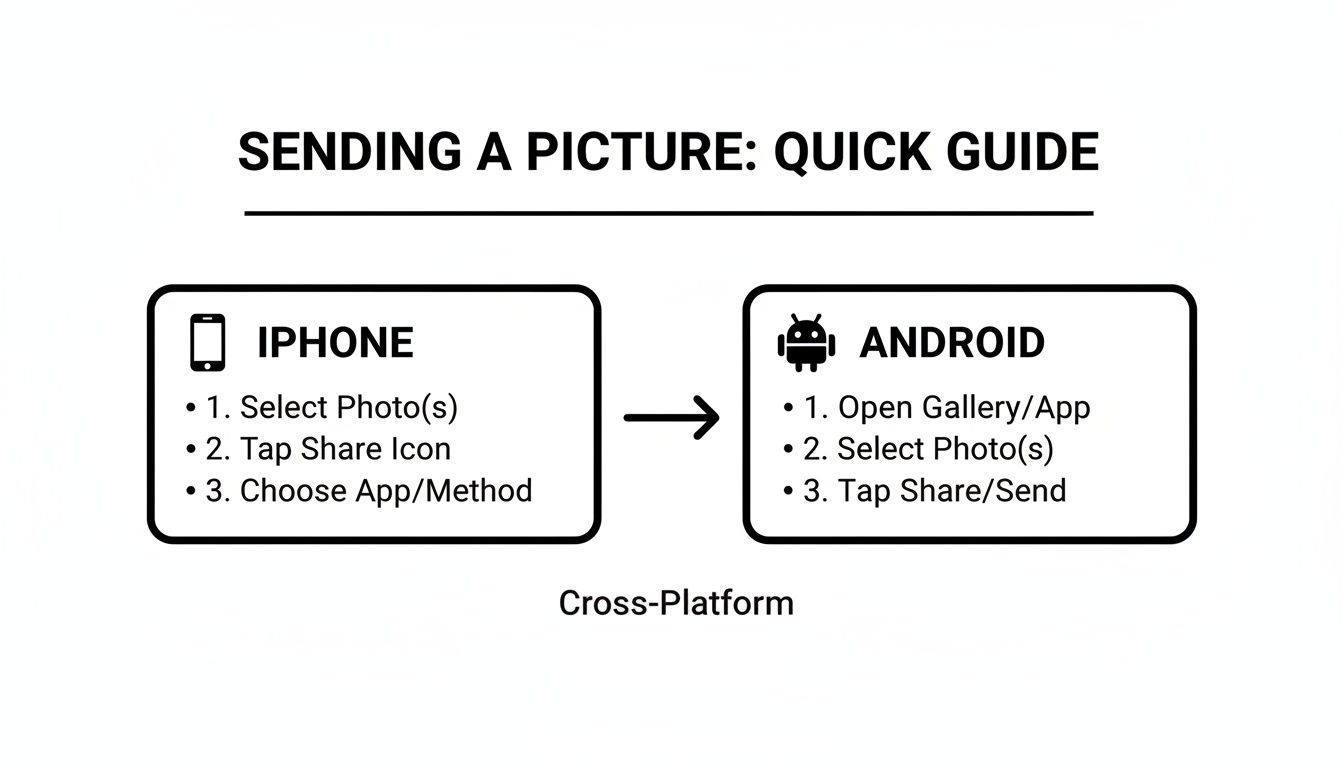
The final quality of the image you send is directly tied to the delivery method your phone chooses.
To get a clearer picture, let's break down how the different technologies stack up. It really highlights why that photo you sent to another iPhone user looks perfect, but the one you sent to an Android user might not.
As you can see, MMS is the universal fallback, but it comes at the cost of quality. RCS and IP-based apps are far superior for sharing crisp, detailed images.
Instead of letting your phone butcher your photos with automatic compression, you can take control by optimizing them yourself. You don’t need fancy software—your phone likely has tools built right in.
For instance, when you email a photo from an iPhone, it asks if you want to send it in Small, Medium, Large, or Actual Size. Choosing one of the smaller options gives you a preview of how compression might affect it.
These technical limits have a real impact. Traditional MMS caps messages around 300–600 KB, which is why photos get so degraded. In contrast, RCS and apps like WhatsApp can handle images that are several megabytes, preserving much more detail. This is exactly why so many people switch to an app for sharing important pictures.
For businesses, remember this: your image quality reflects your brand. A crisp product photo inspires confidence. A blurry one can make you look unprofessional.
The file format you use also makes a big difference in how your image looks on the other end. They aren't all created equal.
Of course, sending a great-looking photo starts with taking one. If you’re an iPhone user, check out these tips for using your iPhone camera's timer to capture better photos to make sure your shots are sharp from the get-go.
Sending a picture through a text message isn't just for sharing weekend snapshots with friends anymore. It’s actually become a surprisingly powerful tool for businesses. When you get it right, a simple image sent via text can grab attention, push sales, and build real customer relationships in a way that plain old text just can't match.
For a small business, this opens up a whole new playbook. Imagine a local boutique sending an MMS of a new dress to its VIP list, or a contractor texting a picture of a beautifully finished kitchen remodel to a happy client. That visual touch makes the message feel more personal and way more engaging.
This is where mass texting platforms come in. They’re the key to making this work at scale, letting you send personalized MMS and RCS campaigns to hundreds or thousands of subscribers at once. You can pack them with images, GIFs, and even short videos. It's how you go from one-off chats to strategic, revenue-generating campaigns.
Before you even think about sending your first promotional image, you absolutely have to understand the rules. The biggest one? Getting explicit consent, also known as an opt-in, from every single person on your list. Skipping this step can land you in serious legal hot water and tank your brand's reputation overnight.
An opt-in isn't just a casual nod. It's a clear, documented "yes" from a customer saying they want to receive marketing messages from you. This usually happens through a web form, a text-to-join keyword, or a physical consent form.
Let me be crystal clear: just having a customer's phone number is not consent. You need proof they specifically agreed to get promotional texts from your business. This protects you and your customers.
To keep everything above board, always:
These aren't just legal hoops to jump through; they're how you build trust with your audience.
Once you’ve got your compliance strategy locked down, you can start playing with some more advanced techniques to make your picture messages really pop.
Not every phone out there can receive an MMS message, but that shouldn't stop you. A great workaround is using hosted media links. If your messaging platform sees a recipient’s phone can't handle an MMS, it can automatically send an SMS with a short link to view the image online. This simple fallback ensures everyone gets the visual experience, no matter what device they’re using.
Here's another trick I love: embedding a QR code right into the image. A restaurant could send a picture of a mouth-watering special with a QR code that links directly to a discount or a reservation page. Suddenly, your simple image becomes an interactive call to action.
The campaigns that really crush it often don't just stick to one channel. You can seriously boost engagement by mixing picture messaging with other tools, like a ringless voicemail.
Picture this sequence:
The voicemail acts as a gentle, non-intrusive nudge, reinforcing the visual message they already saw. This one-two punch ensures your promotion is both seen and heard, which dramatically increases your chances of getting a response. It’s a smart way to connect on multiple levels without being annoying.
Even when you know the ropes, sending picture messages can sometimes feel like a roll of the dice. One minute everything works, the next a message stubbornly refuses to send, or it arrives on the other end looking like a pixelated mess. When this happens, running through a quick troubleshooting checklist can save you a ton of frustration.
Most delivery failures come down to a few usual suspects. The biggest one? Your data connection. MMS messages absolutely require a cellular data connection to send. If you’re connected to Wi-Fi but have cellular data turned off, your picture message is going nowhere.
Another simple but surprisingly common culprit is a buried setting on your phone. Both iPhones and Androids have specific toggles to enable or disable MMS messaging. If that switch gets flipped off by accident, your phone simply won't be able to send or receive picture messages.
Sometimes, the problem isn't on your end at all. The roadblock could be with your recipient's device or their network. Maybe their phone doesn't have MMS enabled, or they’re stuck in an area with a spotty data signal.
Here are the first things I always check when a picture message fails to send:
When you're managing customer communications, delivery is everything. A failed message isn't just an inconvenience; it can be a lost opportunity. Always confirm these basic settings before you start assuming it's a bigger, more complex problem.
For anyone using text messaging professionally, it's also smart to keep an eye on the evolving landscape of RCS messaging. Carrier support and service availability can shift, and these changes can directly impact how your multimedia messages get delivered.
If you’ve run through the basics and you're still stuck, it's time to consider carrier-specific issues. Some mobile carriers have unique network configurations or might be experiencing temporary outages that interfere with MMS delivery. A quick check of your carrier's website or a call to their support line can often clear things up.
Beyond the technical glitches, the content and security of your messages are critical, especially for businesses. When you understand the basics of how your messages are protected, you can communicate with more confidence. If you're curious about the privacy of your texts, you might be interested in our guide that answers the question, is SMS encrypted? Knowing this helps you make smarter decisions about the kind of information you share.
Sending a picture through text should be simple, but as you get into the weeds of marketing campaigns or just trying to share a photo with a friend on a different phone, some common questions pop up.
Let's clear up a few of the most frequent head-scratchers I hear.
Yes, you absolutely can, but your phone's built-in messaging app probably isn't the tool for the job. Most native iOS and Android message apps are built for instant communication and lack a scheduling feature. This is where business texting platforms and even some third-party apps really shine.
For businesses, this is a total game-changer. Imagine setting up an entire MMS campaign—complete with eye-catching images and your promo text—to go out at the perfect time. It's fantastic for sending out birthday offers, appointment reminders with a handy map image, or holiday greetings without having to be glued to your screen.
Ever sent a picture and had the recipient see a clickable link instead? That's not an error—it's actually a smart fallback to guarantee your message gets through.
This usually happens when a business messaging platform sends an MMS to a number that can't receive it. The most common culprits are landlines or a mobile phone that has MMS disabled. Instead of just failing, the system converts your image into a hosted file and sends a standard SMS with a link to view it. It's a clever workaround that ensures your contact can still see what you sent, which is way better than them getting nothing at all.
This is a huge point of confusion, especially for iPhone users. The real difference comes down to the technology running in the background:
iMessage is Apple’s own internet-based messaging service. It works over Wi-Fi or cellular data but only between Apple devices (iPhones, iPads, Macs). It handles high-resolution photos and big files without much compression, which is why pictures sent iPhone-to-iPhone look so crisp and clear.
MMS is the universal standard that works across different carriers and devices. When an iPhone sends a picture to an Android phone, it's sent as an MMS. The catch is that MMS messages have strict file size limits imposed by the carriers, often leading to heavy compression that can make images look fuzzy or pixelated.
Think of iMessage as a private, high-speed highway just for Apple users. MMS is the public road system that everyone else uses. For businesses, it's also smart to mix in other channels like ringless voicemail to add another layer to your visual MMS campaigns, creating a much stronger outreach strategy.
Ready to put this into action and level up your business messaging? Call Loop gives you powerful tools to send MMS campaigns, voice broadcasts, and ringless voicemail drops, all from one simple platform. Start automating your outreach today!
Chris Brisson
Chris is the co-founder and CEO at Call Loop. He is focused on marketing automation, growth hacker strategies, and creating duplicatable systems for growing a remote and bootstrapped company. Chat with him on X at @chrisbrisson


Trusted by over 45,000 people, organizations, and businesses like


