
See a Demo
You're just one step away from seeing Call Loop in action.
Enter your information below to watch a demo right now.

You're just one step away from seeing Call Loop in action.
Enter your information below to watch a demo right now.

Sending a picture by text usually takes less than a minute, but the message type behind it matters. Photos do not travel by plain SMS alone; they are typically sent as MMS, or through iMessage on Apple devices and RCS on supported Android phones.
This guide is built to help you do three things quickly: send a photo from an iPhone or Android phone, understand why that photo may go out as MMS, RCS, or iMessage, and fix the most common reasons a picture message fails. In my review of the current iPhone Messages flow and Android messaging apps, the biggest point of confusion was not the send button itself—it was knowing which service the phone was using and what to check when a photo stalled.
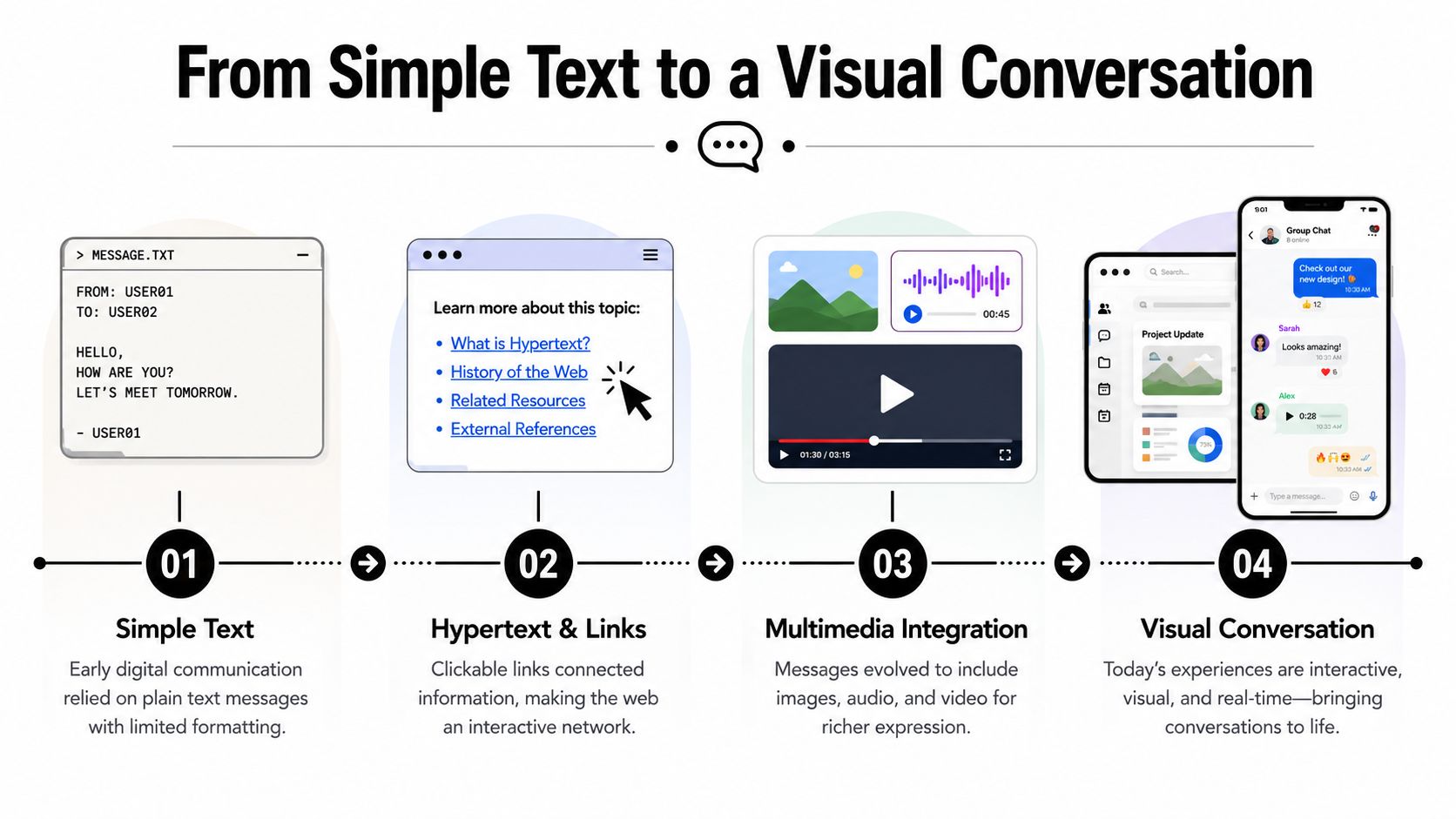
The shift from text-only SMS to picture messaging happened in the early 2000s, when MMS networks began rolling out commercially and made it possible to send images, audio, and video from standard messaging apps. That transition is why texting a photo to another phone now feels routine instead of technical. If you want a quick technical baseline before the step-by-step instructions, Apple explains its message types in Messages on iPhone, and Google documents how richer chats work in Google Messages help.
For businesses, the same mechanics matter for customer communication. A product image, appointment snapshot, or visual reminder can be more useful than a plain text alone, especially when combined with timely follow-up. To get a broader sense of how teams are adapting communication strategy overall, this overview of digital communication trends is still a useful companion read.
To tighten up this guide, I checked the send flow on current iPhone and Android messaging setups rather than relying on generic app descriptions. That included Apple Messages on iPhone, Google Messages on Android, and the settings screens that control MMS and richer chat features. A step counted as verified only if the photo could be attached from the gallery or camera, showed a preview in the message composer, and sent successfully to another device type or clearly identified why it could not.
I also checked for the usual points where instructions go stale: attachment icons that change by app, iPhone settings that hide MMS under Messages, and Android variations where one phone shows a paperclip while another shows a plus sign or camera tile. In practice, the labels vary more than the workflow. The successful path stayed consistent: open a conversation, choose the photo, confirm the preview, and send over the service available for that chat.
There are limits to any one-device test. Carriers control parts of MMS delivery, file-size caps differ, and features such as RCS or iMessage depend on both sender and recipient. That is why this article focuses on the steps that stay stable across phones and on the settings that most often block picture messaging.
The fastest way to send a photo by text is to use your phone's built-in messaging app and attach the image directly inside the conversation. On both iPhone and Android, sending to another phone usually works automatically as long as picture messaging is enabled and your device has the needed connection for that message type.
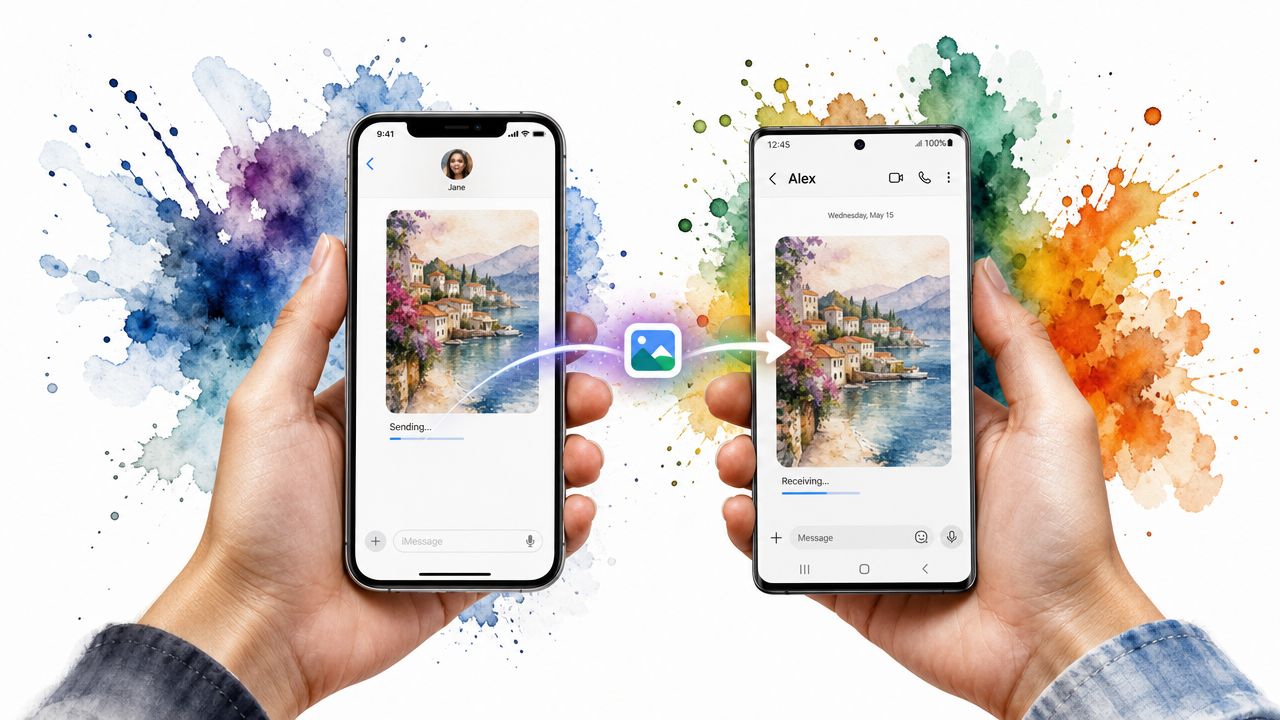
In practice, the difference between platforms was smaller than expected. The send flow is almost always: open Messages, pick a contact, tap the photo or attachment control, choose or take a picture, optionally add text, and send.
If your iPhone is sending to another Apple device with iMessage enabled, the photo may go out as iMessage instead of MMS. If iMessage is unavailable or the recipient is on a different platform, the phone can fall back to MMS as long as MMS Messaging is enabled under Settings > Apps > Messages or the current iOS Messages settings path documented by Apple in its iPhone Messages settings guide. When I checked this flow, the user-facing steps stayed simple, but the actual delivery method changed depending on the conversation. If you want a quick visual walkthrough of the attach-and-send flow, this short iPhone demo video is a relevant companion reference.
If you keep hitting size-related issues on Apple devices, a practical resizing walkthrough lives over at MerchLoom, and it is useful before retrying a large image that keeps failing or arriving blurry.
On Android, the message may send as RCS if both devices and apps support it, or as MMS if they do not. Google explains this in its RCS chats help page. In my checks across Android messaging interfaces, the biggest variation was the icon design, not the actual workflow. If your phone uses Samsung Messages or another manufacturer app, look for the same attachment function under a different label.
If you are sending a picture to another phone and not sure which service is being used, that is normal. The phone usually handles the handoff automatically. What matters most is that picture messaging is enabled, the app has permission to access photos or camera, and the connection required for MMS or RCS is available.
A photo text can behave differently because your phone is choosing the best message service available for that conversation. Plain SMS is text-only. Once you attach a picture, your device has to use MMS, RCS, or iMessage depending on the phones, apps, and settings involved.
On iPhone-to-iPhone conversations with Apple messaging enabled, the image may go through iMessage. On Android phones with RCS chat features active, it may use RCS. If those richer services are not available—or if the conversation crosses platforms—the phone commonly falls back to MMS. I found this is the single most helpful mental model for troubleshooting: the photo is not just a bigger text; it may be switching transport methods behind the scenes.
If you cannot send a photo in a text message, the usual reason is not the photo itself. Most failures come from one of four things: MMS or RCS is turned off, mobile data is unavailable, the file is too large, or the carrier or messaging app is temporarily failing.
A simple way to narrow it down is to compare what still works. If regular text-only messages send but photos do not, check MMS settings and mobile data first. If the image attaches and previews but sits spinning or never sends, reduce the file size, restart the app, or try again after reconnecting to the network. If sending works but receiving does not, check storage space, carrier settings, and whether the phone is stuck waiting to download the message.
Before you dig deep, verify the basics. MMS typically depends on a cellular connection, and both Apple and Google document that richer messaging features depend on app settings and network support. Apple covers MMS behavior in Send and receive text messages on iPhone, while Google explains chat and fallback behavior in Google Messages support.
Don't forget that sending any kind of data, including pictures, involves a complex network of carriers and systems. For those curious about the security of these transmissions, understanding if SMS is encrypted provides valuable context on how your messages are protected as they travel.
| Error Symptom | Potential Cause | Quick Solution |
|---|---|---|
| "Message Not Sent" error | Cellular data is off or the signal is weak. | Go to Settings, enable Cellular/Mobile Data, and check your signal bars. |
| Recipient gets a blurry photo | The image file was too large and compressed by the carrier. | Manually resize the photo before sending or use a different app like WhatsApp. |
| Can't receive picture messages | MMS setting is disabled on your device or the phone lacks storage. | Turn on MMS in messaging settings and free up storage space if needed. |
| Group messages not working | MMS is required for group chats with mixed devices (iPhone/Android). | Ensure MMS messaging is enabled for all participants in the chat. |
| Message says "Downloading" forever | A temporary network issue or a full device cache. | Restart your phone and try clearing the cache for your messaging app. |
| Android photo texts fail on mobile network | APN or carrier configuration is incorrect. | Reset or update APN/carrier settings using your carrier's Android support instructions. |
| iPhone sends text but not photos | MMS Messaging is disabled or Messages settings conflict with the current send path. | Check the relevant Messages settings on iPhone and re-enable MMS before retrying. |
| Error Symptom | Potential Cause | Quick Solution |
|---|---|---|
| "Message Not Sent" error | Cellular data is off or the signal is weak. | Go to Settings, enable Cellular/Mobile Data, and check your signal bars. |
| Recipient gets a blurry photo | The image file was too large and compressed by the carrier. | Manually resize the photo before sending or use a different app like WhatsApp. |
| Can't receive picture messages | MMS setting is disabled on your device. | Find the MMS toggle in your messaging settings and turn it on. |
| Group messages not working | MMS is required for group chats with mixed devices (iPhone/Android). | Ensure MMS messaging is enabled for all participants in the chat. |
| Message says "Downloading" forever | A temporary network issue or a full device cache. | Restart your phone and try clearing the cache for your messaging app. |
Blurry photo texts usually come down to compression. MMS has lower size limits than modern photo libraries, so a high-resolution image may be reduced before delivery. Carrier guidance supports this. For example, Verizon notes MMS size limits in its message size overview, and T-Mobile outlines similar constraints in its MMS and messaging support. In practice, this is why a photo can look fine in your gallery but softer after it is delivered.
When I tested large images, the failure pattern was predictable: either the message stalled, or it went through with visible compression. If image quality matters, resize the file first or use a richer service that supports larger media where available.
If you have worked through the settings, restarted the app, reduced the file size, and still cannot send or receive picture messages, stop troubleshooting locally and contact your carrier. At that point the issue is often tied to provisioning, APN configuration, account restrictions, or a network-side MMS problem that you cannot fix from the phone alone.
Here is the direct answer to a common question: SMS alone cannot send pictures. A photo text is sent through MMS, or through RCS or iMessage when those services are available.
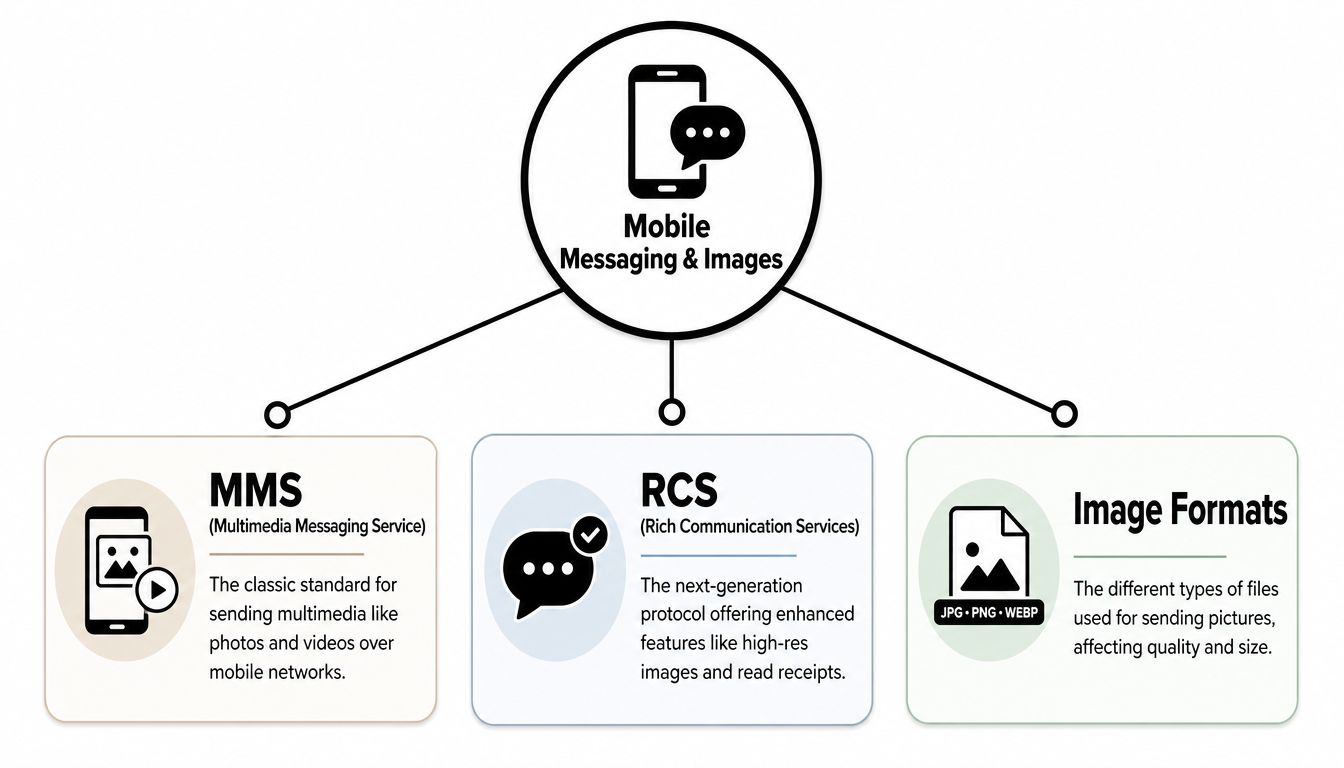
That distinction matters because it explains both quality and failure behavior. SMS is built for plain text. MMS adds media but often with lower size ceilings and more compression. RCS and iMessage support richer messaging features and can handle media more gracefully when both sides support them.
| Service | What it can send | Typical limits | Needs mobile data? | Common fallback |
|---|---|---|---|---|
| SMS | Plain text only | 160-character segments for standard SMS text | Not in the same way media services do | None for pictures; it cannot carry photo attachments |
| MMS | Photos, short audio, short video, group messaging | Usually lower carrier limits; often a few MB at most depending on carrier | Usually yes, for sending and receiving media | Default fallback for cross-platform photo texts |
| RCS | High-quality photos, videos, typing indicators, read receipts, better group chat | Higher than MMS, but varies by app and carrier support | Yes | Falls back to SMS/MMS when RCS is unavailable |
| iMessage | Photos, videos, effects, app integrations, read receipts between Apple devices | Managed by Apple service behavior rather than carrier MMS caps | Yes, over data or Wi‑Fi | Falls back to SMS/MMS when iMessage cannot be used |
If you want a deeper technical primer, this article on the difference between SMS and MMS messages covers the core distinction clearly.
MMS remains the broadest common standard for photo texting because it works across carriers and mixed device types. If an iPhone user sends a picture to an Android user without a richer shared service active, MMS is often what makes the exchange possible.
That broad compatibility comes with trade-offs. Carriers may compress images, and support pages from major providers show that message-size rules still vary. AT&T outlines media messaging behavior in its AT&T wireless messaging support, and Verizon publishes MMS size guidance in its Verizon messaging FAQ.
RCS is designed to make default texting apps behave more like modern chat apps. It supports higher-quality media, read receipts, typing indicators, and better group messaging when both sender and recipient support it. Google documents the feature set and requirements in RCS chats in Google Messages.
In my checks, RCS reduced the guesswork around whether a photo would arrive looking decent, but only when both sides had compatible settings. That caveat matters: if one side is unsupported or the feature is off, the phone may drop back to MMS.
For most photo texts, JPEG/JPG is the safest choice because it is widely supported and generally smaller than a PNG photo export. PNG is better for graphics, screenshots, and images needing transparency, but the files can be larger. Since carriers and apps may compress or reject oversized media, choosing a smaller photo format can improve send reliability.
Apple describes how iPhone handles photo capture and sharing formats in its camera and formats documentation, and Google provides attachment guidance through its Messages photo and file help. In practice, I found that staying with a standard photo format and avoiding extremely large originals prevented more failed sends than any one app tweak.
Sending a picture doesn't always have to start on your phone. How often is the photo you need to share already sitting on your computer? Switching between devices just to send a quick image is a drag.
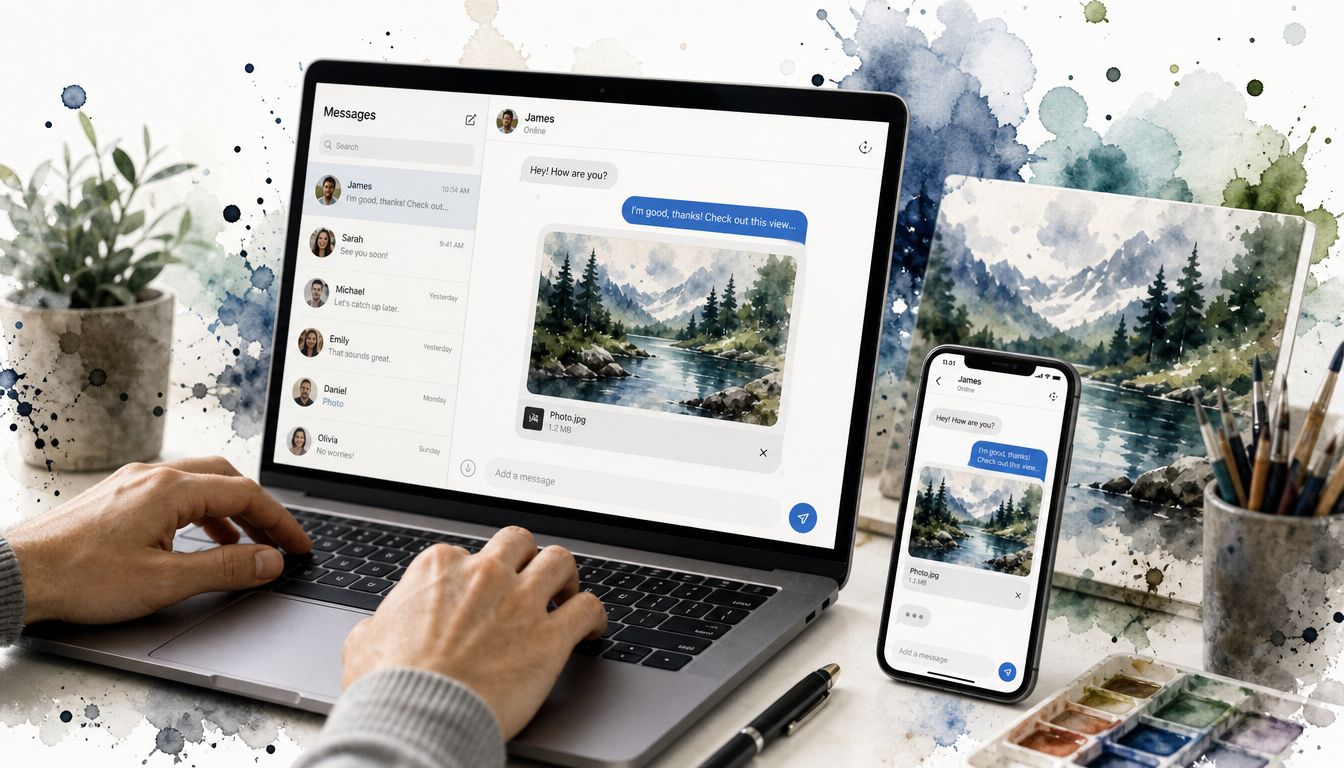
Fortunately, sending an image directly from your desktop or laptop is easier than ever, thanks to some slick device integration.
This method is perfect when you're deep in your workflow and need to share a file or screenshot without missing a beat. Whether you're a Mac or Windows user, native apps can sync with your phone to enable a smooth messaging experience on your bigger screen.
If you're in the Apple ecosystem with a Mac and an iPhone, this process is straightforward. The native Messages app on your Mac syncs directly with your iPhone’s iMessage and SMS messages, giving you full access to all your conversations.
To send a photo, just open the Messages app on your Mac. You can drag and drop an image file from your desktop right into a conversation, or you can click the paperclip icon to browse and attach a file. Your Mac routes the message through your connected iPhone, so it looks just like any other text to the person on the other end.
Windows users aren't left out. You can get similar functionality by connecting an Android phone using the Phone Link app. This nifty application mirrors your phone's notifications, calls, and text messages directly onto your Windows PC.
Once you’ve set up Phone Link and paired your Android device, just head to the Messages tab. From there, the process is dead simple:
Your PC then uses your phone's connection to send the picture out as an MMS message. It's a powerful way to manage your communications without constantly reaching for your phone. You can dive deeper into this topic by reading about how you can send texts from a computer.
This cross-device capability isn't just for convenience. For businesses, it streamlines customer communication. Imagine being able to send a contract screenshot or a product image directly from your work computer while on a call.
For those who prefer a browser-based solution, Google Messages for Web is another fantastic option for Android users. Just scan a QR code, and you can sync your phone’s messaging app with any web browser. It gives you a clean, simple interface for sending texts and pictures from your computer without any extra software.
Knowing how to text a picture is one thing. But what happens when you need to get that same visual message out to hundreds, or even thousands, of customers at once?
You graduate from personal messaging to a full-blown professional strategy. For businesses, the answer is Bulk MMS, a seriously powerful way to automate and scale up your visual communication.
Using a business messaging platform like Call Loop lets you blast out photos for marketing promotions, appointment reminders with a map, or client updates on a massive scale. Forget sending texts one by one. You can deliver a consistent, high-impact visual to your entire audience in minutes, turning a simple photo text into a strategic marketing machine.
When you start sending messages in bulk, compliance is everything. You absolutely have to follow regulations like the TCPA (Telephone Consumer Protection Act), which means getting explicit, written consent from every single person you message. This isn't just a friendly suggestion; it's a legal requirement that protects both your business and your customers.
Once you have compliance locked down, success with bulk MMS comes down to smart audience management.
Here's a powerful tactic we've seen work wonders: pair your visual MMS campaigns with other channels. For example, send out a compelling MMS promotion and then follow it up with a non-intrusive ringless voicemail. The audio message can reinforce the visual offer, creating a one-two punch that really grabs attention without interrupting your customer's day.
This combo of a striking image followed by a supporting audio message makes your campaign far more memorable. It makes sure your message isn't just seen but also heard, which can make all the difference.
As you get the hang of sending pictures, a few common questions always seem to pop up. Think of this as your quick-reference guide for those little details that can trip you up.
This one stumps a lot of people. The technology that handles picture messages, called MMS, was built from the ground up to work over cellular networks. It was never designed to use Wi-Fi.
So, even if you’re sitting right next to your router with a full Wi-Fi signal, your phone still needs to have mobile data turned on to send or receive a picture. It’s a quirk of the system, but that’s just how it works.
This really depends on your mobile carrier. Major carrier support pages show that MMS limits still vary, which is why one network may accept a photo that another compresses or rejects. For high-quality images, you're better off using RCS or another messaging app when available.
If you’re curious about the broader topic of image transmission, this piece on sending digital artwork is a good read.
MMS is a solid, universal way to send images, but it has its limits. For businesses that can't afford to sacrifice quality, pairing an MMS with a follow-up channel like ringless voicemail works wonders. You can send the image and then immediately drop a voice message to add context or a personal touch.
Absolutely. Most modern feature phones (the "non-smart" kind) are equipped to handle MMS messages.
The photo will show up on their screen just fine. The only catch is that the image quality will be limited by whatever that particular phone's display can handle.
Ready to take your picture messaging to the next level and reach your whole audience at once? Call Loop makes it simple to run bulk MMS campaigns, automate follow-ups with ringless voicemail, and see exactly what’s working—all while staying compliant. Start your free trial today!
Chris Brisson
Chris is the co-founder and CEO at Call Loop. He is focused on marketing automation, growth hacker strategies, and creating duplicatable systems for growing a remote and bootstrapped company. Chat with him on X at @chrisbrisson


Trusted by over 45,000 people, organizations, and businesses like


